> ## Documentation Index
> Fetch the complete documentation index at: https://docs.slng.ai/llms.txt
> Use this file to discover all available pages before exploring further.
# Agent Infra
> Use Agent Infra in the SLNG Dashboard to create voice agents from templates, configure prompts and models, test in-browser, and monitor live call traffic.
Agent Infra is where you create and operate voice agents:
* [Agent Infra](https://app.slng.ai/agent-infra)
## Create an agent
* [New agent](https://app.slng.ai/agent-infra/new)
* Start from a template (Healthcare, Insurance, Financial Services, Hospitality & Travel) or create from scratch
* Configure the system prompt, greeting(s), models, and tools
* Duplicate an existing agent when you want to reuse its stored configuration
* If you plan to dispatch outbound calls or use human transfer tools, attach an outbound connection (see [Telephony](/dashboard/telephony))
Personalization is available in two places when you create an agent:
* [Template variables](/examples/agents-config#template-variables) for prompts and greetings
* [Tool personalization](/examples/agents-config#tool-personalization) for supported tool fields such as
webhook URLs, system webhook argument values, human transfer phone numbers, and built-in
timezones
Webhook text controls such as descriptions, result instructions, and forced pre-action message
text stay static and do not support runtime personalization.
Use this mental model when configuring agents in the Dashboard:
* Prompt and greeting variables are checked at session start
* Tool-only personalization is checked only when that tool runs
That means a call can still start even if a tool-only value is missing, but the tool itself will
fail if it executes without a valid rendered value.
Tool fields that support personalization now show a Personalizable indicator in the
editor. Hover it to see the supported syntax, when the value is validated, the required final
format, and an example. For the full rules and examples, see
[Tool personalization](/examples/agents-config#tool-personalization).
For webhook URLs, personalization is limited to path segments and query parameter values. The
host, port, credentials, fragments, and query parameter names must remain literal.
You can also manage agents programmatically. See the [Create agent](/api-reference/agents/create-agent), [Update agent](/api-reference/agents/update-agent-partial), and [List agents](/api-reference/agents/list-agents) API endpoints.
## Test in browser
Use the built-in test page for a web (non-telephony) session:
* `https://app.slng.ai/agent-infra//test`
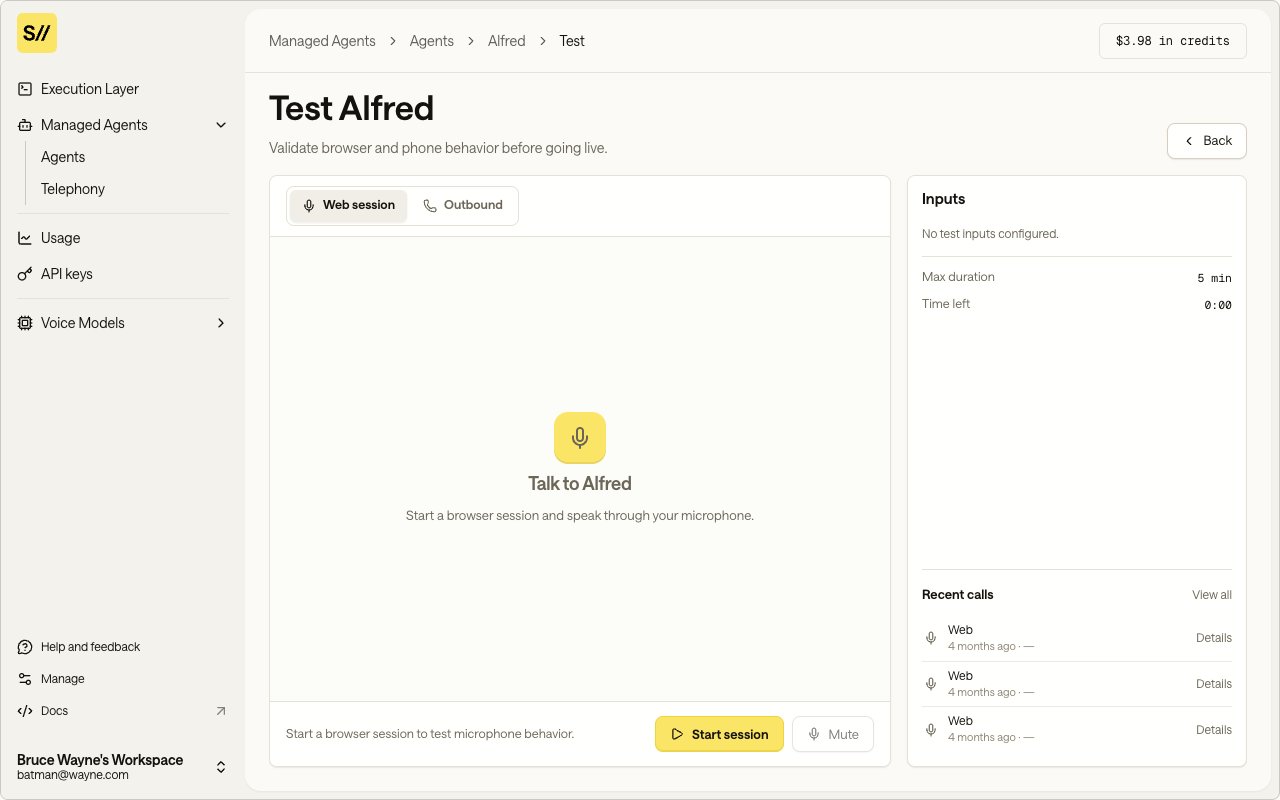 You can also create web sessions via the API. See [Agent API examples](/examples/agents-api#test-with-a-web-session).
## Calls
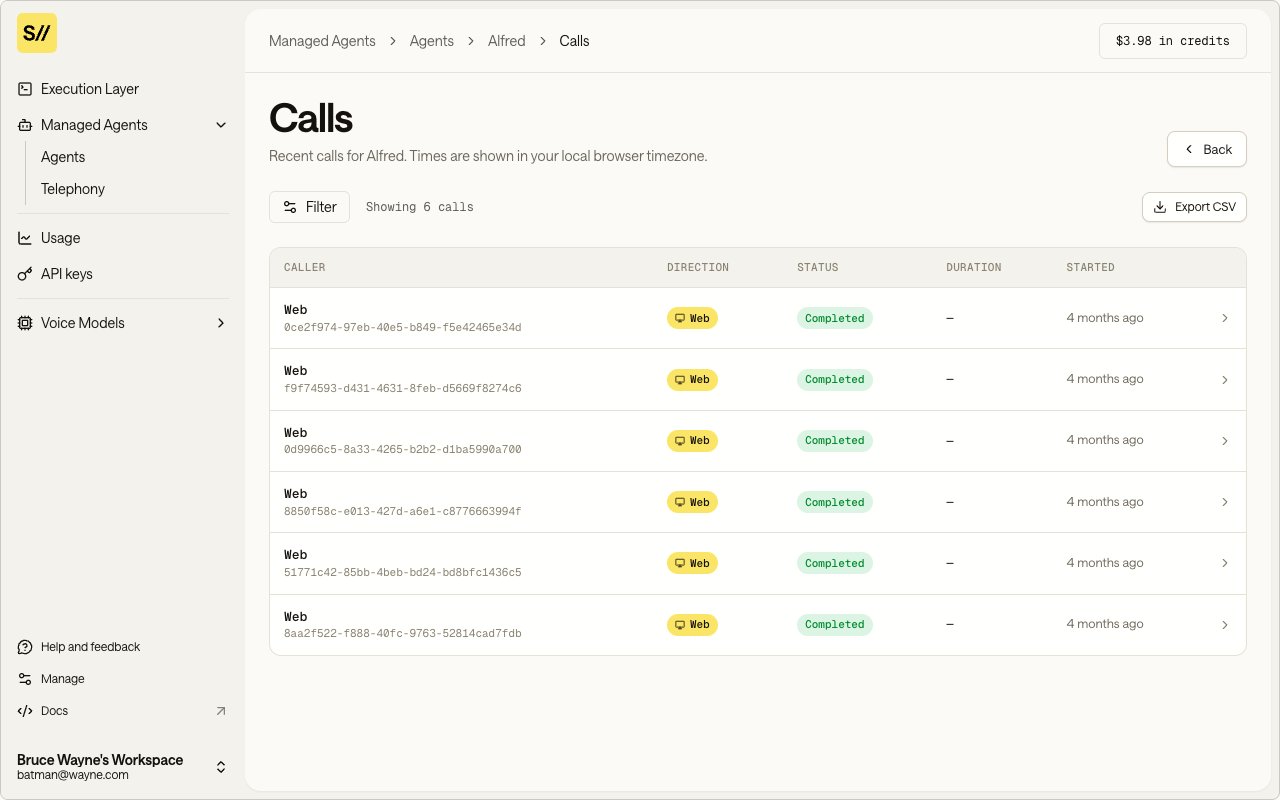
Each agent has a dedicated calls page where you can monitor and review all call activity:
* Calls list: `https://app.slng.ai/agent-infra//calls`
* Call details: `https://app.slng.ai/agent-infra//calls/`
### Call list
The calls list shows all calls for an agent (both inbound and outbound), with the most recent calls first. You can filter by status to find active, completed, or failed calls.
You can also create web sessions via the API. See [Agent API examples](/examples/agents-api#test-with-a-web-session).
## Calls
Each agent has a dedicated calls page where you can monitor and review all call activity:
* Calls list: `https://app.slng.ai/agent-infra//calls`
* Call details: `https://app.slng.ai/agent-infra//calls/`
### Call list
The calls list shows all calls for an agent (both inbound and outbound), with the most recent calls first. You can filter by status to find active, completed, or failed calls.
 ### Call details
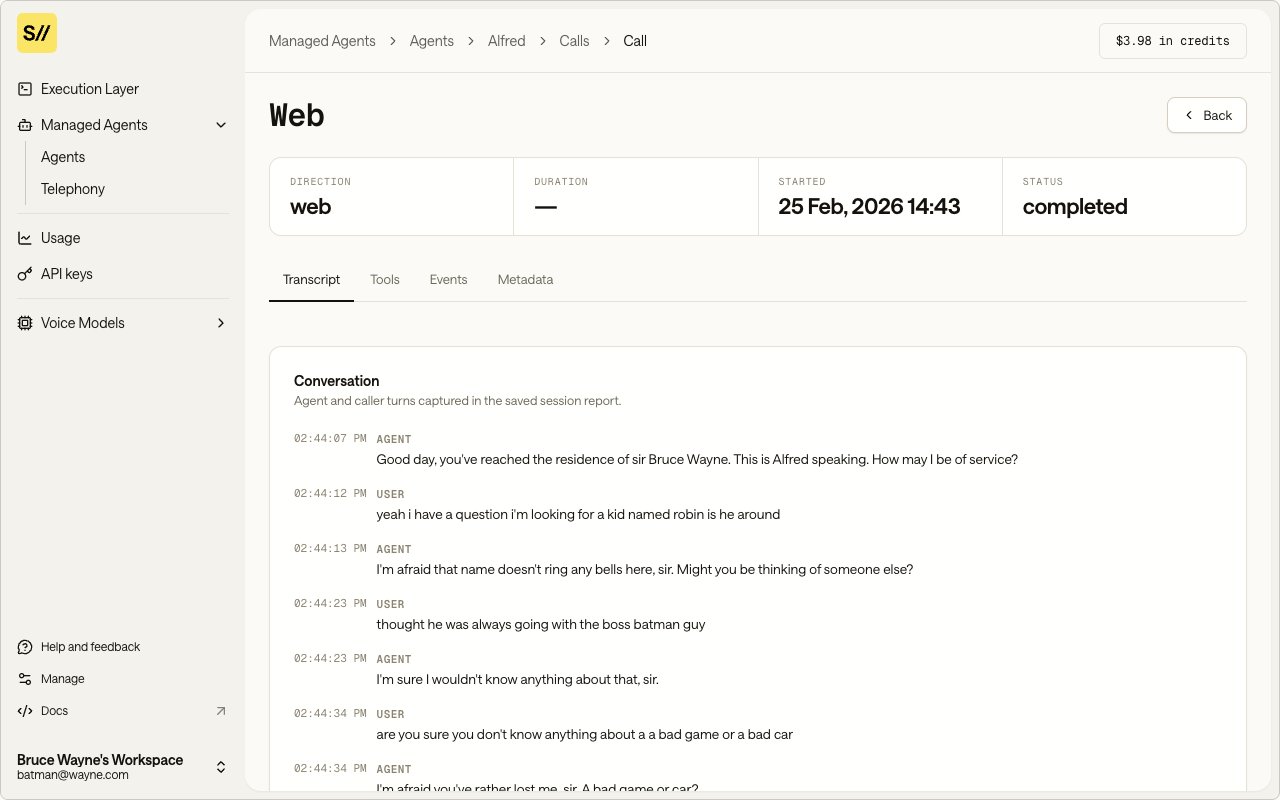
Each call record includes:
* **Status**: current call state (e.g., dispatched, active, completed, failed)
* **Phone number**: the E.164 number involved in the call
* **Template arguments**: the values passed for template variables (e.g., `patient_name`, `practice_name`)
* **Rendered prompt**: the final system prompt after template variables are resolved
* **Timestamps**: when the call was created and last updated
* **Session report**: when available, includes transcript and session-level metadata
### Call details
Each call record includes:
* **Status**: current call state (e.g., dispatched, active, completed, failed)
* **Phone number**: the E.164 number involved in the call
* **Template arguments**: the values passed for template variables (e.g., `patient_name`, `practice_name`)
* **Rendered prompt**: the final system prompt after template variables are resolved
* **Timestamps**: when the call was created and last updated
* **Session report**: when available, includes transcript and session-level metadata
 ### Dispatching outbound calls
You can dispatch outbound calls from the Agent Infra UI or programmatically via the API. Outbound calls require the agent to have an outbound SIP trunk configured. See [Telephony](/dashboard/telephony).
For code examples, see [Agent Call Examples](/examples/agents-calls).
Everything in Agent Infra maps to public API endpoints. See the Voice Agents API tab for a complete reference.
### Dispatching outbound calls
You can dispatch outbound calls from the Agent Infra UI or programmatically via the API. Outbound calls require the agent to have an outbound SIP trunk configured. See [Telephony](/dashboard/telephony).
For code examples, see [Agent Call Examples](/examples/agents-calls).
Everything in Agent Infra maps to public API endpoints. See the Voice Agents API tab for a complete reference.