> ## Documentation Index
> Fetch the complete documentation index at: https://docs.slng.ai/llms.txt
> Use this file to discover all available pages before exploring further.
# LiveKit
> Add SLNG hosted speech to text and text to speech, and the SLNG Context Router, to a LiveKit agent.
Keep your LiveKit agent where it runs and swap its speech to text and text to
speech for SLNG hosted models. You can also point the language model at the SLNG
Context Router. The rest of your pipeline stays as it is.
There are two ways to do it. Set up the layers in the dashboard and copy the
migration prompt for your coding agent, or make the edits yourself.
## Prerequisites
* A running LiveKit agent (Python).
* An SLNG API key. See [Create your API key](/guides/get-started/quickstart#create-your-api-key).
* A BYOK LLM key registered in your org, so the router has a model to route to. See [Bring your own key](/guides/models/bring-your-own-key).
* For the assisted path, a coding agent that supports skills.
## Set up in the dashboard
Improving an agent is à la carte. Turn on speech to text, the language model,
text to speech, or any mix of the three, and leave the rest to your current
stack. You decide which layers to optimize. Set up the ones you want, then copy
the prompt SLNG builds from your choices.
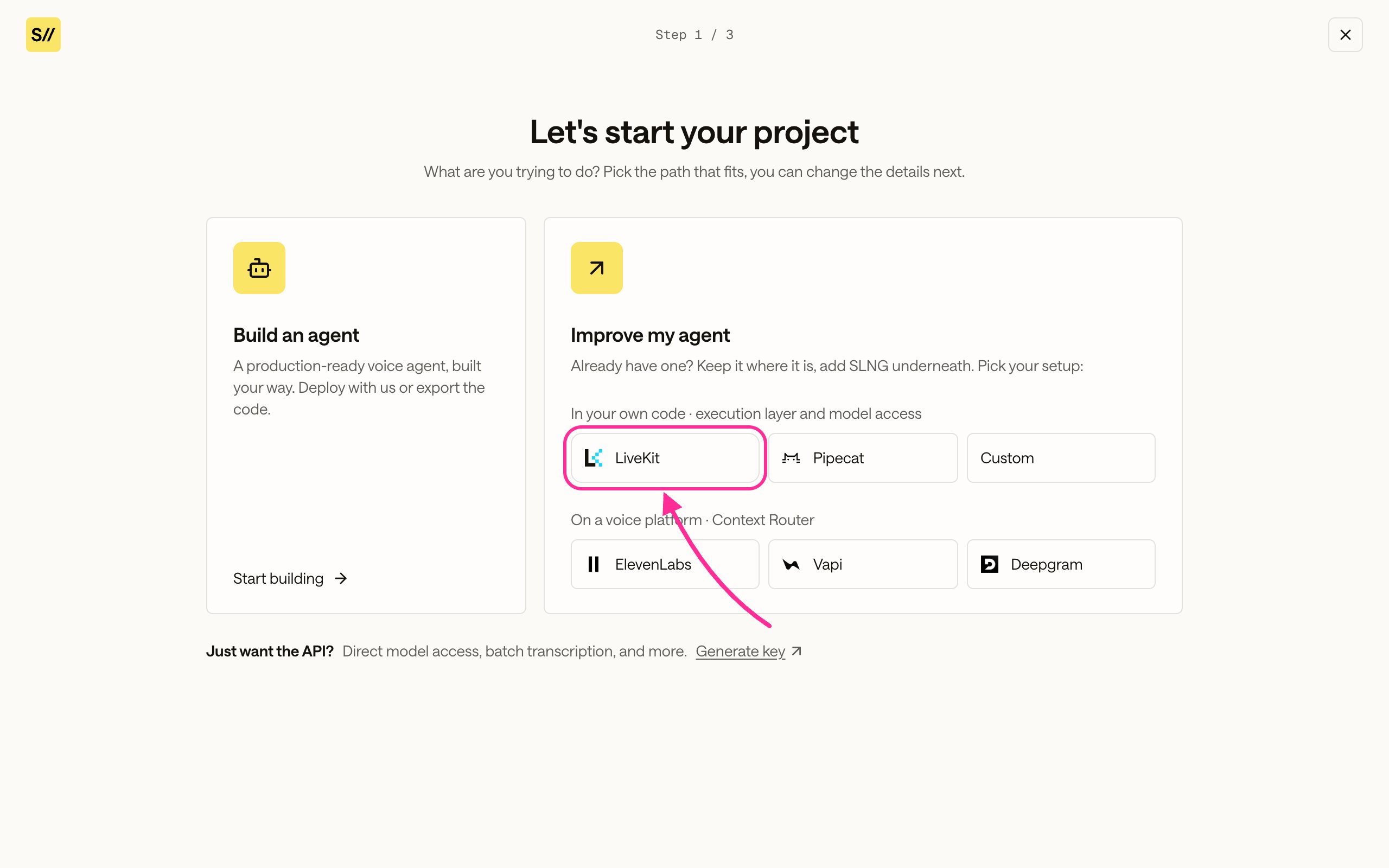
Start a new project, choose **Improve my agent**, and under **In your own
code** select **LiveKit**.
 Open **Listen**, turn on speech to text, and choose the model your agent
should use. Leave it off to keep your current speech to text.
Open **Listen**, turn on speech to text, and choose the model your agent
should use. Leave it off to keep your current speech to text.
 Open **Think**, turn on the language model, and choose the model your agent
should use.
Open **Think**, turn on the language model, and choose the model your agent
should use.
 Open **Speak** and choose the text to speech model and voice. Use the
**Include TTS** toggle to route this layer through SLNG or leave it on your
current provider.
Open **Speak** and choose the text to speech model and voice. Use the
**Include TTS** toggle to route this layer through SLNG or leave it on your
current provider.
 Click **Integrate** in the top right, then **Copy prompt** in the modal. The
prompt is built from your Listen, Think, and Speak choices. Hand it to your
coding agent, which installs the
[`livekit-migration` skill](/guides/integrate/skills) and applies the change.
Click **Integrate** in the top right, then **Copy prompt** in the modal. The
prompt is built from your Listen, Think, and Speak choices. Hand it to your
coding agent, which installs the
[`livekit-migration` skill](/guides/integrate/skills) and applies the change.

 Your model IDs, voice, language, and region come from what you picked.
````md theme={null}
# Migrate this LiveKit agent to SLNG hosted STT/TTS and the SLNG Context Router
Use the SLNG `livekit-migration` skill to replace speech to text and
text to speech with `slng.STT` and `slng.TTS`. Replace the LLM with
LiveKit's OpenAI-compatible plugin pointed at the SLNG Context Router using
`bedrock-mantle/nvidia.nemotron-nano-3-30b:latest`.
## Install the skill
```bash
npx skills add slng-ai/skills livekit-migration
```
## Selected stack
- STT: `slng/deepgram/nova:3-en`
- TTS: `slng/fish/tts:s2.1-pro`
- Voice: the voice you picked
- Language: English (`en`)
- Region: European Union, via the `eu.api.slng.ai` base URL
- LLM: SLNG Context Router, model `bedrock-mantle/nvidia.nemotron-nano-3-30b:latest` at `https://au.context-router.slng.ai/v1`
## Instructions for the coding agent
1. Discover the entrypoint, package manager, env loading, and current
STT/TTS/LLM wiring before editing. Do not assume file names.
2. Establish a rollback point with a clean git tree.
3. Validate `SLNG_API_KEY` without printing it.
4. Install `livekit-plugins-slng` and import-probe
`from livekit.plugins import slng`.
5. Replace the STT and TTS constructors with `slng.STT(...)` and
`slng.TTS(...)`.
6. Point the LLM at the SLNG Context Router endpoint.
7. Never inline API keys. Verify one spoken turn that completes STT to
LLM to TTS.
````
## Edit the code yourself
If you would rather not use a coding agent, make the same edits directly. The
removed lines below depend on your current providers, so match them to your
code.
Use your project's package manager.
```bash theme={null}
uv add livekit-plugins-slng
```
Swap the two constructors that feed your session. Keep the models, voice,
language, and region you selected.
```diff theme={null}
- from livekit.plugins import deepgram, cartesia
+ from livekit.plugins import slng
- stt = deepgram.STT(model="nova-3")
- tts = cartesia.TTS(voice="")
+ stt = slng.STT(
+ model="slng/deepgram/nova:3-en",
+ language="en",
+ base_url="eu.api.slng.ai", # pin a region for latency or data residency; omit for api.slng.ai
+ )
+ tts = slng.TTS(
+ model="slng/fish/tts:s2.1-pro",
+ voice="", # the voice you picked in Speak, e.g. a Fish Audio voice
+ language="en",
+ base_url="eu.api.slng.ai", # keep the same region as STT
+ )
```
Keep LiveKit's OpenAI plugin and repoint it at the router. Pass stable agent
and session identifiers in the headers. Use a fixed `agent_id` for the
running agent and the current room or session ID for `session_id`.
```diff theme={null}
from livekit.plugins import openai
- llm = openai.LLM(model="gpt-4o")
+ llm = openai.LLM(
+ base_url="https://au.context-router.slng.ai/v1", # swap au for your region
+ api_key=os.environ["SLNG_API_KEY"],
+ model="bedrock-mantle/nvidia.nemotron-nano-3-30b:latest",
+ extra_headers={
+ "X-Slng-Agent-Id": agent_id,
+ "X-Slng-Session-Id": session_id,
+ },
+ )
```
Run one spoken turn through your agent and confirm it completes speech to
text, the LLM, and text to speech.
## Next steps
* [Which models are available](/guides/models/which-models-are-available) for
other speech models and voices you can route through SLNG.
Your model IDs, voice, language, and region come from what you picked.
````md theme={null}
# Migrate this LiveKit agent to SLNG hosted STT/TTS and the SLNG Context Router
Use the SLNG `livekit-migration` skill to replace speech to text and
text to speech with `slng.STT` and `slng.TTS`. Replace the LLM with
LiveKit's OpenAI-compatible plugin pointed at the SLNG Context Router using
`bedrock-mantle/nvidia.nemotron-nano-3-30b:latest`.
## Install the skill
```bash
npx skills add slng-ai/skills livekit-migration
```
## Selected stack
- STT: `slng/deepgram/nova:3-en`
- TTS: `slng/fish/tts:s2.1-pro`
- Voice: the voice you picked
- Language: English (`en`)
- Region: European Union, via the `eu.api.slng.ai` base URL
- LLM: SLNG Context Router, model `bedrock-mantle/nvidia.nemotron-nano-3-30b:latest` at `https://au.context-router.slng.ai/v1`
## Instructions for the coding agent
1. Discover the entrypoint, package manager, env loading, and current
STT/TTS/LLM wiring before editing. Do not assume file names.
2. Establish a rollback point with a clean git tree.
3. Validate `SLNG_API_KEY` without printing it.
4. Install `livekit-plugins-slng` and import-probe
`from livekit.plugins import slng`.
5. Replace the STT and TTS constructors with `slng.STT(...)` and
`slng.TTS(...)`.
6. Point the LLM at the SLNG Context Router endpoint.
7. Never inline API keys. Verify one spoken turn that completes STT to
LLM to TTS.
````
## Edit the code yourself
If you would rather not use a coding agent, make the same edits directly. The
removed lines below depend on your current providers, so match them to your
code.
Use your project's package manager.
```bash theme={null}
uv add livekit-plugins-slng
```
Swap the two constructors that feed your session. Keep the models, voice,
language, and region you selected.
```diff theme={null}
- from livekit.plugins import deepgram, cartesia
+ from livekit.plugins import slng
- stt = deepgram.STT(model="nova-3")
- tts = cartesia.TTS(voice="")
+ stt = slng.STT(
+ model="slng/deepgram/nova:3-en",
+ language="en",
+ base_url="eu.api.slng.ai", # pin a region for latency or data residency; omit for api.slng.ai
+ )
+ tts = slng.TTS(
+ model="slng/fish/tts:s2.1-pro",
+ voice="", # the voice you picked in Speak, e.g. a Fish Audio voice
+ language="en",
+ base_url="eu.api.slng.ai", # keep the same region as STT
+ )
```
Keep LiveKit's OpenAI plugin and repoint it at the router. Pass stable agent
and session identifiers in the headers. Use a fixed `agent_id` for the
running agent and the current room or session ID for `session_id`.
```diff theme={null}
from livekit.plugins import openai
- llm = openai.LLM(model="gpt-4o")
+ llm = openai.LLM(
+ base_url="https://au.context-router.slng.ai/v1", # swap au for your region
+ api_key=os.environ["SLNG_API_KEY"],
+ model="bedrock-mantle/nvidia.nemotron-nano-3-30b:latest",
+ extra_headers={
+ "X-Slng-Agent-Id": agent_id,
+ "X-Slng-Session-Id": session_id,
+ },
+ )
```
Run one spoken turn through your agent and confirm it completes speech to
text, the LLM, and text to speech.
## Next steps
* [Which models are available](/guides/models/which-models-are-available) for
other speech models and voices you can route through SLNG.